Manually copying meeting notes into Slack after every call wastes 10 to 15 minutes per meeting and buries the recap three scrolls down by lunch. Connect an AI meeting summary assistant to Slack once, and every recap lands in the right channel the moment the call ends — no copy-paste, no forwarding, no "did anyone catch what we decided on pricing?" thread three days later.
- Connecting Slack to an AI meeting summary assistant takes under 15 minutes once workspace admin access is confirmed.
- Fireflies.ai and Otter.ai both post directly to a Slack channel; Gong and Fathom lean toward sales or Zoom-heavy teams.
- The most common setup failure in 2026 is forgetting to invite the bot to a private channel — it has to be added manually.
- Route summaries to a shared channel instead of a DM if more than one person needs the recap.
Why this matters
Professional services teams run on calls — client check-ins, internal syncs, scoping sessions — and every one of them generates decisions that need to live somewhere other than someone's memory. Avanti AI Partners works with firms that lose hours a week to exactly this gap: the meeting happened, the decision got made, and nobody wrote it down anywhere searchable.
An AI meeting summary assistant connected to Slack closes that gap without adding a step to anyone's day. The call ends, the summary posts, the action items are visible to whoever needs them — no one has to remember to send it. That's the entire point of the workflow below, and the fastest path from setup to a working consulting engagement usually starts with fixing this one integration before touching anything bigger.
Before you start
- Slack workspace admin access — you need permission to approve app installs, or someone with that permission has to click Approve for you.
- An AI meeting summary assistant already recording your calls — Otter.ai, Fireflies.ai, Fathom, and Gong all support Slack in 2026, and the assistant has to be actively joining meetings before the Slack step matters at all.
- The gotcha: most meeting assistants can only post to a Slack channel they've been explicitly invited into. If the target channel is private, adding the bot in the app's settings screen doesn't add it to the channel — you still have to type
/invite @[assistant name]inside that channel, or the summaries will silently fail to post and you won't get an error telling you why.
Connect your AI meeting assistant to Slack
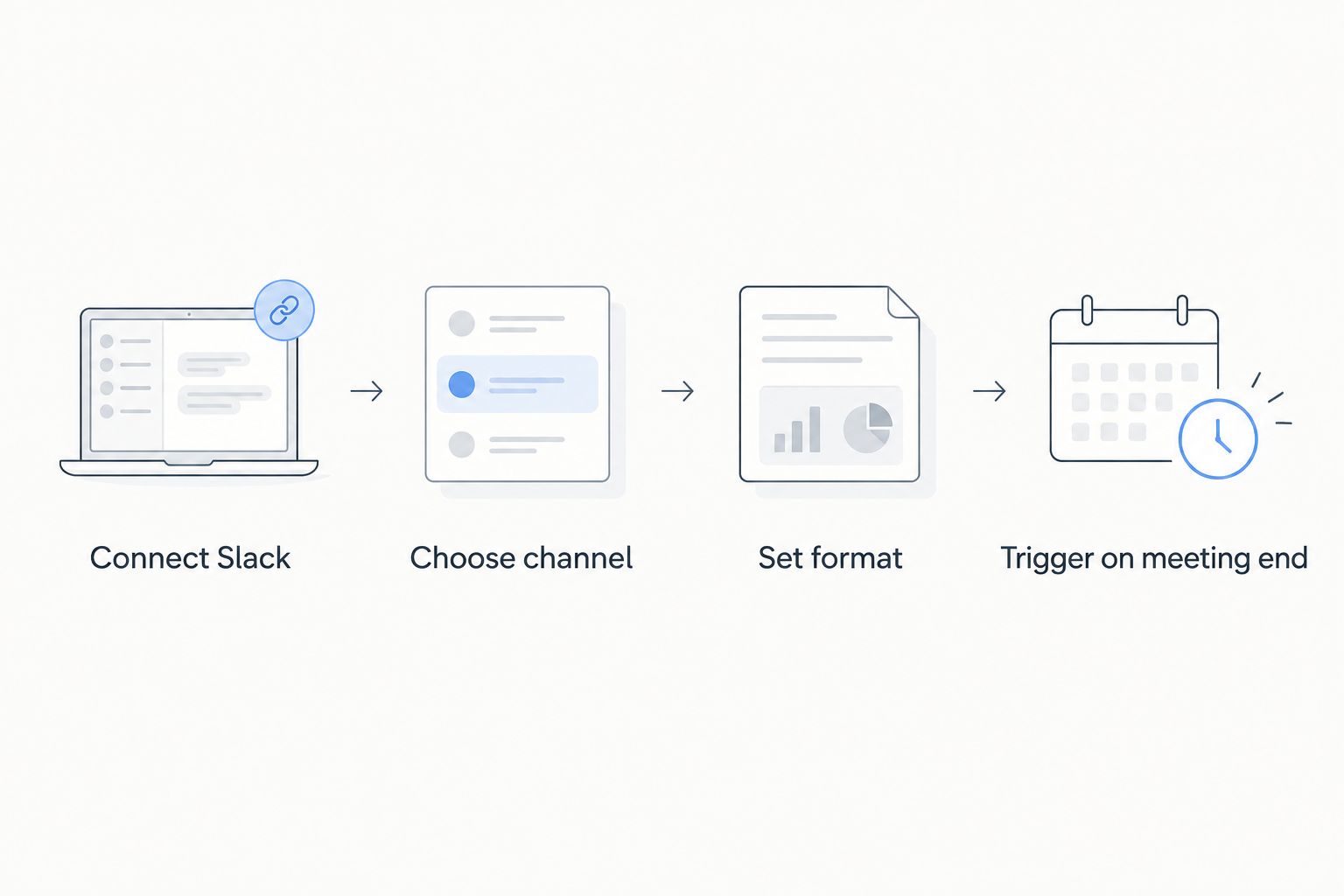
- Open your AI meeting assistant's dashboard and find Integrations or Connections in the settings menu.
- Click Connect (or Add to Slack) next to the Slack option.
- You'll be redirected to Slack's authorization screen. Review the requested permissions — most assistants request Post messages, View channel list, and sometimes Access files for transcript attachments.
- Click Allow to authorize the connection.
- You'll land back on the assistant's dashboard with a confirmation that Slack is connected.
Expected result: the integrations page shows Slack as Connected, with your workspace name displayed next to it.
Configure where summaries post
- Inside the assistant's Slack settings, find Default channel or Post summaries to.
- Select the channel from the dropdown — for a private channel, go into Slack first and run
/invite @[assistant name]so it has access before you select it here. - Choose the summary format if the option exists: most tools let you pick between Full summary, Action items only, or Full transcript + summary.
- Save the settings.
Expected result: a test summary (many assistants offer a Send test message button) appears in the selected channel within seconds.
Set trigger rules for automatic posting
- Look for Automation or Posting rules in the same settings area.
- Set the trigger to After meeting ends — this is the default for nearly every assistant and the one that matters for real-time recaps.
- If the tool supports it, set a delay buffer of 2 to 5 minutes; some assistants need that window to finish processing the transcript before the summary is accurate.
- Save the rule.
Expected result: your next real meeting produces a summary in Slack within a few minutes of the call ending, without anyone triggering it manually.
Push summaries to a shared channel instead of DMs
Some teams default to DM-only summaries because that's the assistant's out-of-the-box setting, but a shared channel works better whenever more than one person acts on the recap. Follow the same steps above, but instead of selecting your own name or a 1:1 DM as the destination, create a dedicated channel like #meeting-summaries and point every meeting type at it. This also gives you a searchable archive going back to whenever you turn the workflow on in 2026 — Slack's search bar becomes a meeting-history tool without any extra setup.
Comparing the common Slack-connected assistants
| Tool | Best for | Strength | Watch for |
|---|---|---|---|
| Otter.ai | Teams already using it for live transcription | Clean transcript-to-summary pipeline in one pass | Slack posting depends on plan-level channel limits |
| Fireflies.ai | Teams syncing meeting data across multiple tools | Wide native integration list including Slack, HubSpot, and Salesforce | Default summary style is generic until you tune the prompt settings |
| Fathom | Fast, informal internal reviews on Zoom | Quick highlight clips alongside the written recap | Built primarily around Zoom; thinner support elsewhere |
| Gong | Sales and revenue teams tracking call signals | Deep call analytics beyond a basic summary | Overbuilt for a simple internal-meeting recap workflow |
For a Slack-first professional services team, the setup that gets running fastest is Fireflies.ai piped straight into a dedicated #meeting-summaries channel — a 15-minute build, no engineering ticket required.
Troubleshooting
- Summaries never post at all. The bot almost certainly hasn't been invited to the channel. Run
/invite @[assistant name]directly inside Slack, not just in the assistant's own settings screen. - Summary posts, but hours late. Check the trigger rule — some assistants default to a manual or scheduled digest instead of an after-meeting trigger. Switch it to immediate posting.
- Summary is vague or missing action items. The transcript quality usually traces back to the meeting itself — cross-talk and poor audio degrade the summary. Switch the format setting to Action items only if full narrative summaries keep coming back thin.
- Duplicate summaries for the same meeting. This happens when two team members both have the assistant active in the same call. Set one person as the designated "host" account for the integration.
- Bot posts to the wrong channel after a rename. Slack channel renames sometimes break the stored channel ID. Re-select the channel in the assistant's settings after any rename.
Customize your workflow
Once Slack and the meeting assistant are talking to each other reliably, the next move is deciding what else should trigger off a meeting summary — a task created in your project tool, a ticket routed to support, a lead score updated in your CRM. If support volume is the next bottleneck, routing tickets to AI automatically when call volume spikes follows the same connect-once-let-it-run logic. Teams running client calls into a pipeline can look at Salesforce-to-AI lead scoring as the natural next connection, and anyone running support alongside sales should check connecting HubSpot to an AI customer service assistant.
Need help wiring this into your stack?
Avanti AI Partners scopes AI workflow connections for professional services teams.
FAQ
What's the best AI meeting summary assistant to connect to Slack in 2026?
Fireflies.ai and Otter.ai are the two most commonly connected to Slack in 2026, with Fireflies offering the broader native integration list across CRM and support tools. Gong and Fathom fit better for sales-heavy or Zoom-only teams respectively.
Is Fireflies.ai better than Otter.ai for Slack integration?
Fireflies.ai connects to more tools beyond Slack, which matters if summaries also need to reach a CRM or HubSpot. Otter.ai's transcript-to-summary pipeline is cleaner for teams that only need Slack and nothing else.
Can the AI assistant post summaries to a private Slack channel?
Yes, but the bot has to be manually invited into that specific private channel using /invite inside Slack — adding it in the assistant's own settings screen alone is not enough.
Does the AI meeting assistant need to join the call directly?
Most assistants join through a calendar invite or a bot that dials into the meeting link automatically. If it never joins, no transcript is generated and no summary can post to Slack.
What happens if the meeting has no calendar invite?
Assistants that rely on calendar sync won't auto-join an ad-hoc call. Some tools support manually pasting a meeting link or starting a recording bot directly, which is worth checking before an important unscheduled call.
How long does it take to set up Slack and an AI meeting assistant?
The Slack connection itself takes under 15 minutes for someone with workspace admin access. Most of the delay in practice comes from waiting on channel invite permissions, not the integration steps.
Can multiple teams share one Slack meeting summary channel?
Yes, a shared channel like #meeting-summaries works well when several teams need visibility into the same recaps, and it doubles as a searchable meeting archive over time.
One last thing
Most meeting assistants can auto-join a call straight from a calendar invite, which means the summary workflow still runs even when nobody remembers to manually start the recording — the calendar sync does that step for you. The Slack connection is the easy 15-minute part; the real value shows up the first time someone finds a decision from three weeks ago just by searching the channel instead of asking around.